Datasets
Datasets store reusable test data for your mock server. They help you separate test data from virtual behaviors or mock rules. You create a dataset, upload the data, and then fetch specific records in response templates using values from an incoming request. The same Dataset can supply data to multiple endpoints in your organization.
Beeceptor supports importing a JSON, NDJSON, or CSV file. For example, a product mock can return a catalog item by ID or a list of items in a category. When a price changes, you can update the Dataset independently, without changing the mock rule or server.
Datasets are available on Enterprise plans.
How does this work?
Organization administrators create and manage Datasets under Manage Organization → Datasets. A Dataset holds the records; a mock rule defines when and how to return them. In a response template, you refer to the Dataset by its key, look up one or more records, and use the result to build the API response.
Each record in the Dataset has an identity: one or more fields that uniquely identify it, similar to a primary key. Beeceptor uses these identity fields to add new records and update existing ones when you upload new data. Optional lookup indexes support searches on frequently queried fields, such as a product category.
Using Datasets
Consider an example of managing product data in Beeceptor. Save the following as products.json. In this example, the IDs are strings so they match the values passed in URL query parameters.
[
  {"id":"p-101","name":"Notebook","category":"stationery","price":8,"available":true},
  {"id":"p-102","name":"Pen","category":"stationery","price":2,"available":true},
  {"id":"p-103","name":"Mug","category":"kitchen","price":12,"available":false}
]
1. Create a dataset
- Open Manage Organization, choose Datasets, and select Create dataset.
- Enter Products as the Dataset name and
productsas the Dataset key. - Upload the
products.jsonfile as the Source file. You will see the top-level fields populated from the uploaded data. - Select
idfor Record identity. Each product has a unique ID. - Optionally select
categoryunder Lookup indexes for category queries. - Review the normalized records and select Create dataset.
Dataset creation runs in the background. Once the file is imported and the Dataset is created, open its details. Go to the Endpoint access section, select your endpoint, click Add, and then Save. The endpoint must be active, private, and on an Enterprise plan in the same organization. You can grant multiple endpoints access to the same Dataset.
2. Configure the rule
On that endpoint, create a mock rule matching GET requests to /products. Set the response status to 200, add a Content-Type: application/json response header, and enable response templating.
Use this response body:
The first line looks up one product and stores it in variables.product without adding any text to the response. The final line serializes that record as JSON. Triple braces preserve JSON quotes without HTML escaping. Here, variables is an object that holds named results so you can access them elsewhere in the template.
3. Make a request
Now, use the following curl command to make a request to the mock server. You should replace YOUR-ENDPOINT with your endpoint name:
curl 'https://YOUR-ENDPOINT.proxy.beeceptor.com/products?id=p-101'
The response body contains:
{"id":"p-101","name":"Notebook","category":"stationery","price":8,"available":true}
In this example, you used the incoming request's id query parameter to look up a record in the Dataset and return the whole record. For an unknown ID, the response body contains the JSON value null. The response status remains 200.
Supported file types
You can use the following file formats to import records or update them later. Choose a format that matches how you maintain your test data.
| Format | Required structure | Types |
|---|---|---|
| JSON | One top-level array of objects | JSON strings, numbers, booleans, nulls, objects, and arrays |
| NDJSON / JSONL | One JSON object per non-empty line | The same types as JSON |
| CSV | A header row followed by records; quoted values are supported | Choose string, number, boolean, or datetime for each column |
For CSV files, choose the type of each column during import:
- Columns default to strings.
- For boolean columns, use
trueorfalse(case-insensitive). - Datetime values must include a timezone, such as
2026-09-07T10:00:00Zor2026-09-07T15:30:00+05:30. - An empty number, boolean, or datetime cell becomes
null; an empty string cell remains an empty string.
For JSON and NDJSON files, records can contain nested objects and arrays. Lookups filter on top-level fields. For example, you can filter on category in the product data above, but you cannot use an object or array as a filter value.
Query records
Once your Dataset is ready, use a template declaration to fetch the records you need. You can include declarations in mock response bodies, weighted-response bodies, custom HTTP callout request bodies, and the root response body of asynchronous HTTP callout rules. Declarations are not supported in callout URLs or headers.
Lookup fields
Choose identity fields based on how you distinguish one record from another. Every record must have a non-null scalar value, such as a string or number, for each identity field. When you select multiple fields, their combined values must be unique. For example, productId and warehouseId together can identify a stock record, even when the same product appears in several warehouses.
Beeceptor uses this identity to match records during an update. An initial upload with duplicate identities or invalid records fails creation. Later uploads follow the update behavior you select, as described under Update records.
You can also select optional Lookup indexes for fields you expect to query frequently. For example, index category if your mock often returns products by category. Indexes help speed up lookups and do not require unique values. You can still query fields without an index.
Template helpers
Use dataset-one to fetch one record or dataset to fetch a list. Both helpers take the result name first, followed by the Dataset key. The result is stored in the variables object for use in your template.
Place Dataset declarations outside if or each blocks and before references to their results.
| Helper | Result | No match |
|---|---|---|
dataset-one | One matching record | null |
dataset | An array of matching records, up to 1,000 | [] |
For example, the declaration below fetches all records from the products Dataset and stores them as variables.my_products. The final line returns that list as JSON.
Filter records
To return a subset of records, add named filter arguments after the Dataset key. Each filter, also called a predicate, checks for equality. When you supply more than one, a record must match all of them (AND).
Consider the product data above. This template returns only products that belong to the stationery category and are available. The result contains the Notebook and Pen records.
To use a value from the incoming request, you can combine a request helper with dataset, as in id=(queryParam "id") from the earlier example.
Filter values must match the stored data type. For example, price=8 matches the Notebook's numeric price, while price="8" does not. Query parameters are strings, so use a numeric value or convert the input when filtering a numeric field.
Build the response
After a lookup, use variables.<resultName> to access the returned data. You can return the whole result or use individual fields to build your own response. Use the json helper to serialize values correctly.
For example, this template returns the selected product and its name as separate fields:
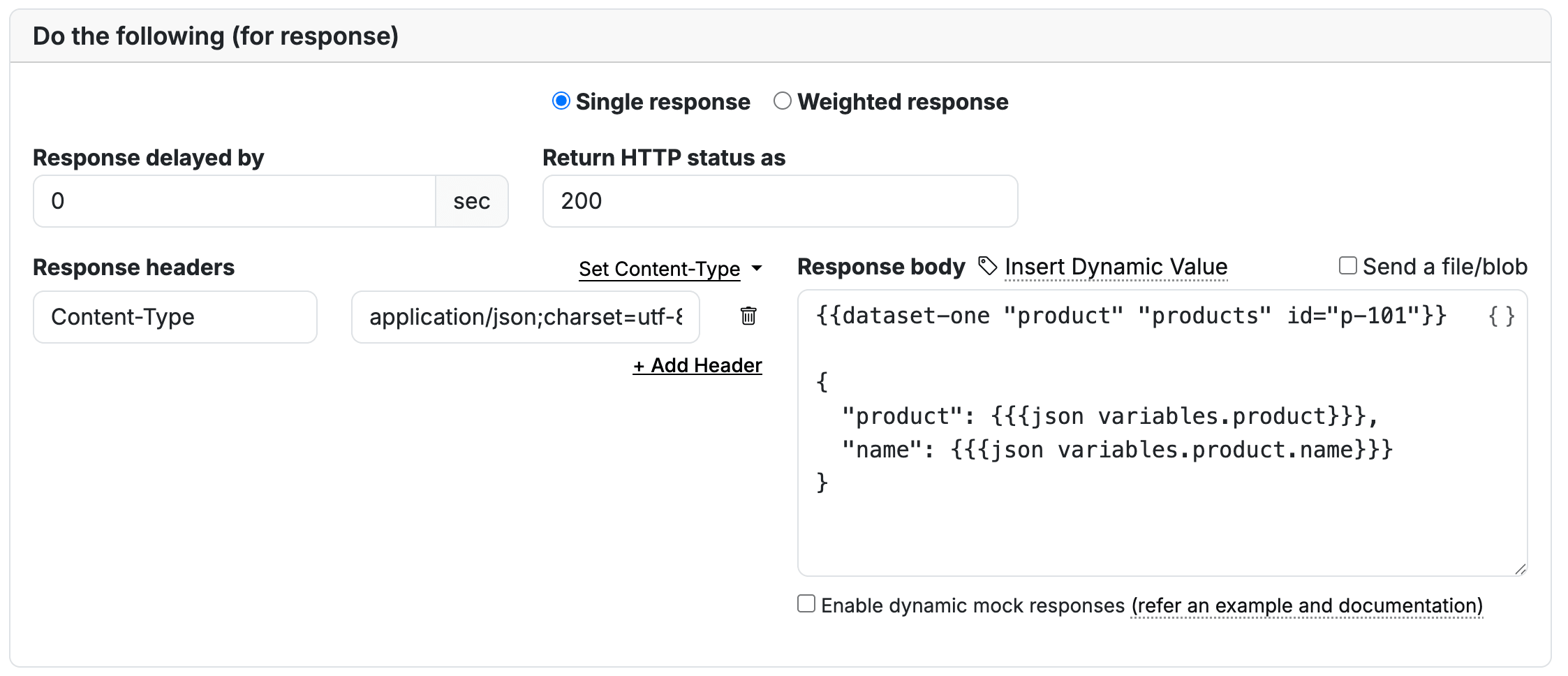
Here, variables.product contains the whole record, and variables.product.name contains "Notebook".
Chained lookups
You can use the result of one lookup as a filter in the next. This is useful when your response needs related data.
For example, first look up product p-101, then use its category to find other products in the same category:
The first declaration finds the Notebook. The second uses its category value, stationery here, to return both the Notebook and Pen.
Update records
When your test data changes, you can upload a new file to the existing Dataset. On the Dataset details page, upload a new source file, choose the Update behavior, and select Update records.
The update behavior determines what happens when an uploaded record has the same identity as a stored record:
| Behavior | How it works |
|---|---|
| Update existing and add new | If the uploaded record matches an existing record's identity, it replaces the existing record's data; if the record is new, it is inserted. |
| Add new only | If the uploaded record matches an existing identity, the existing record remains unchanged; if the identity is new, the record is inserted. |
Updates replace complete records, so include all required fields in each uploaded record. Review the operation result after an upload, as some records may be rejected while others are accepted.
Troubleshooting
If a lookup or upload does not behave as expected, start with the checks below. An empty lookup result means no record matched; a failed lookup can indicate an invalid filter or an access problem.
| Symptom | What to check |
|---|---|
A lookup returns null or [] | Confirm that the record exists and all filter values match. Types matter: the number 8 differs from the string "8". |
| A lookup fails | Check the Dataset key and saved endpoint access. The endpoint must be active, private, and on an Enterprise plan in the same organization. Also check the filter fields and values. |
| An upload rejects records | Review the first rejection message, then check identities, duplicate records, schema, and field types. |
| A data refresh leaves older records in place | Updates do not delete records omitted from the upload. The Add new only option leaves existing identities unchanged. |
Limitations
The following limits apply to Datasets and their queries. If your use case needs higher limits, contact the support team to discuss your requirements.
| Resource | Limit |
|---|---|
| Datasets per organization | 10 |
| Uploaded source file | 10 MiB |
| Records per Dataset | 10,000 |
| Single record size (normalized) | 100 KiB |
| Declarations per response | 5 |
| Equality filters per query | 3 |
Records returned by dataset | 1,000 |
Each lookup supports up to three equality filters on top-level fields, combined with AND. Queries do not support comparisons, OR expressions, regular expressions, sorting, pagination, or field projections.
If more than one record matches dataset-one, it can return any matching record. Query by a unique identity when you need a specific record. Lists returned by dataset also have no guaranteed order.
The Dataset key, schema, and record identity cannot change after creation. Review them before your first import, since later uploads must use the same structure.
For more examples of request helpers and response templates, see Reuse Request Data. For organization settings and endpoint management, see Enterprise Management.